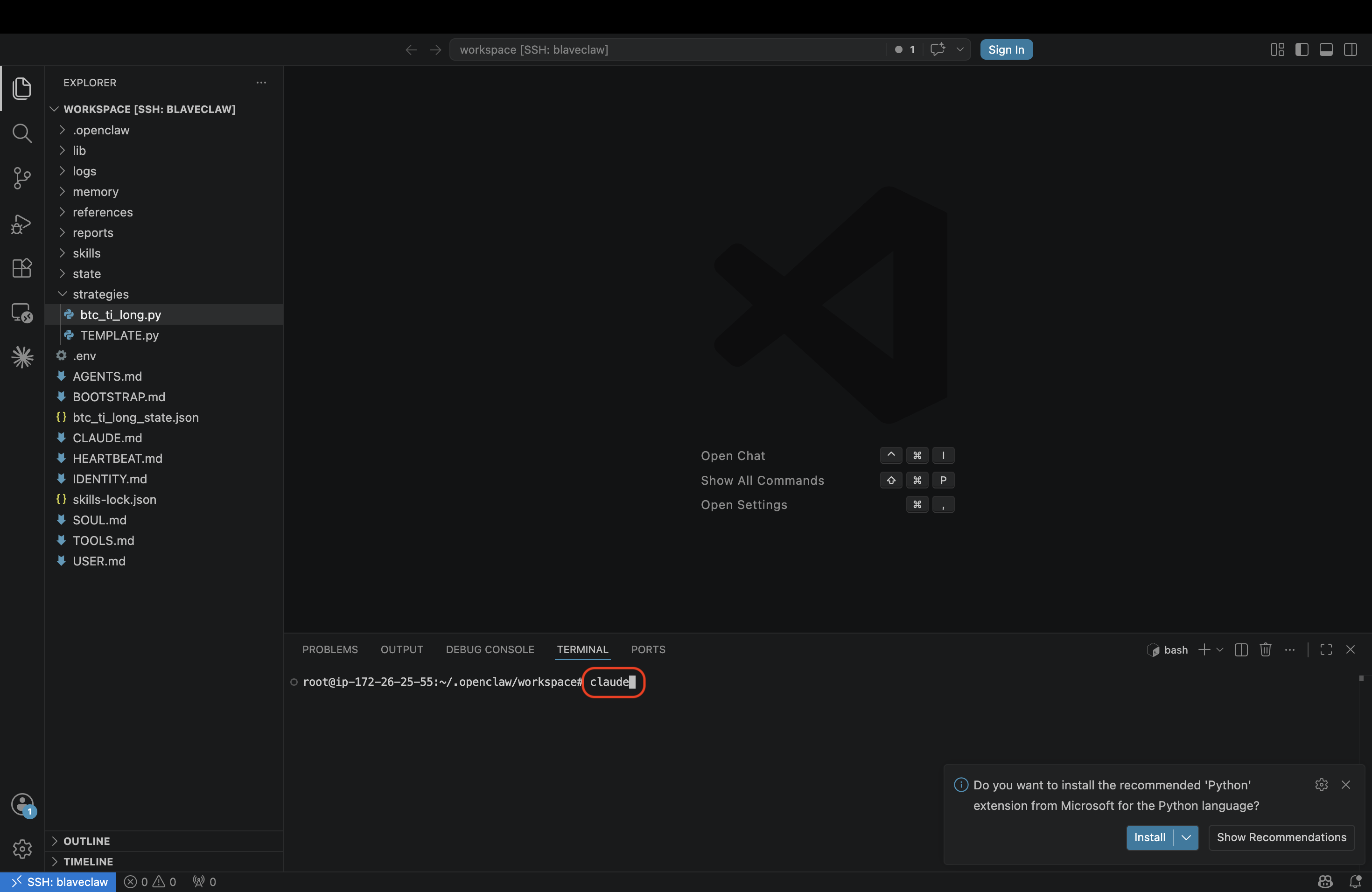
Connect VS Code to your BlaveClaw instance and edit strategies directly from your local machine.
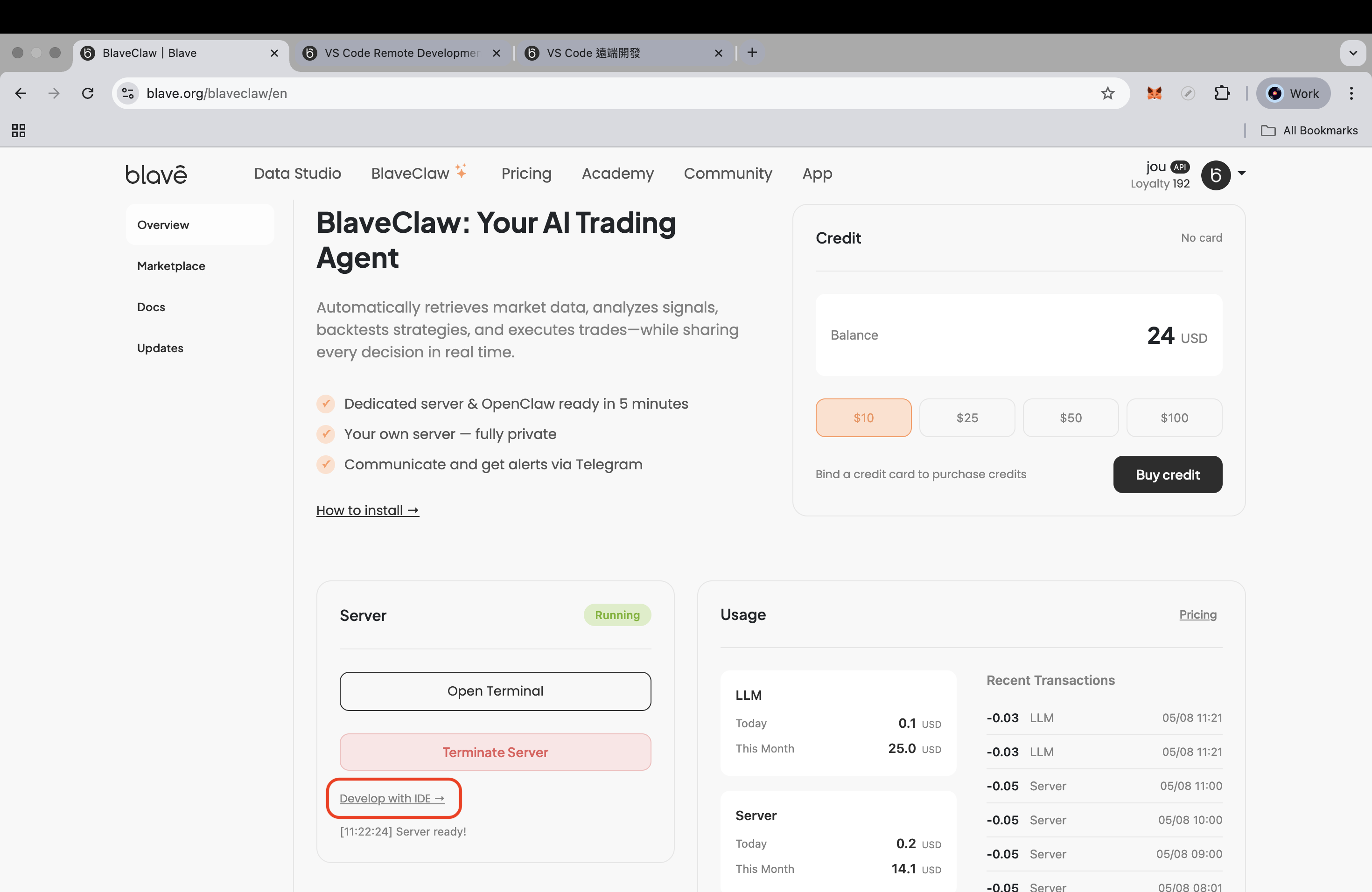
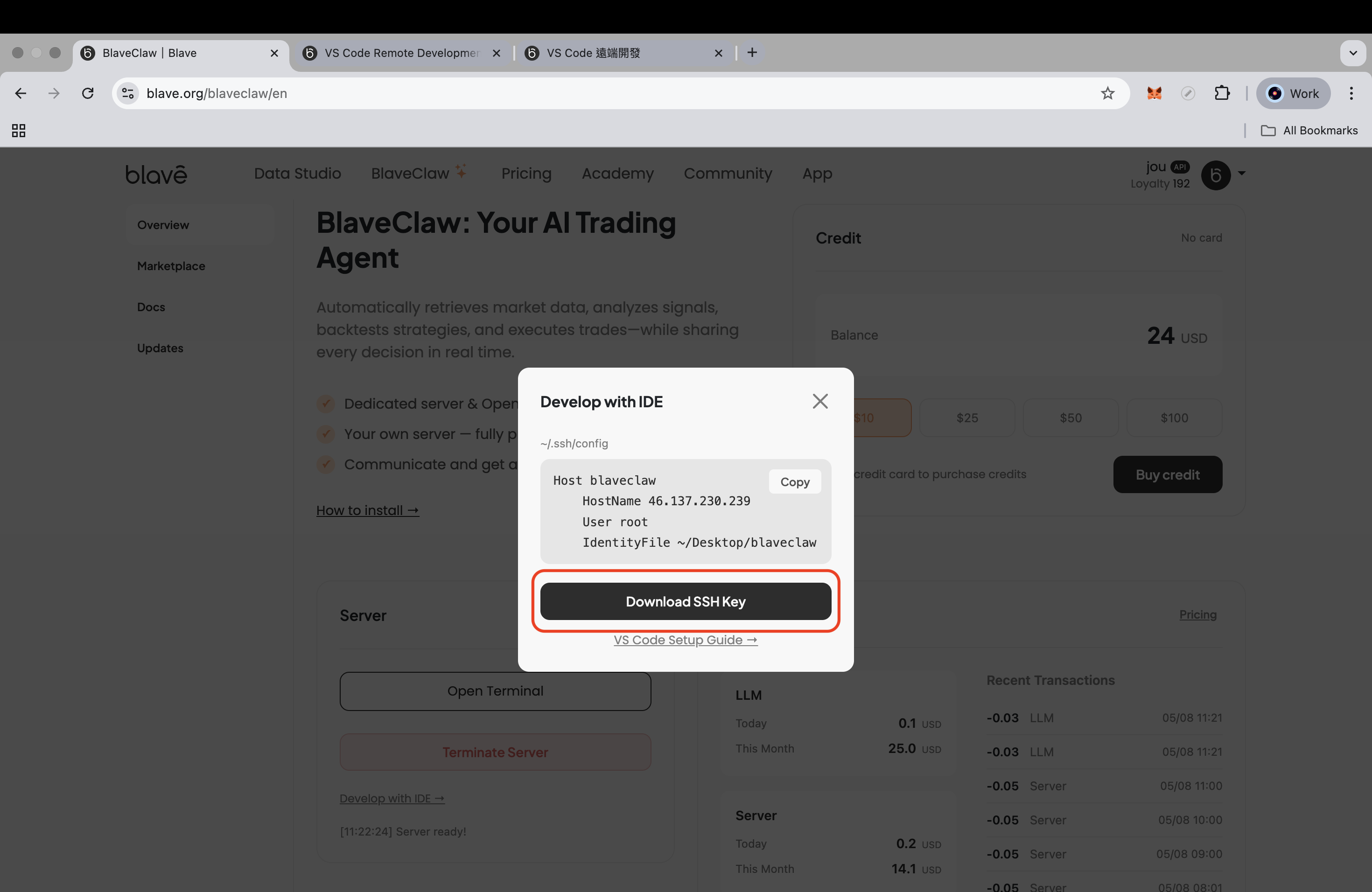
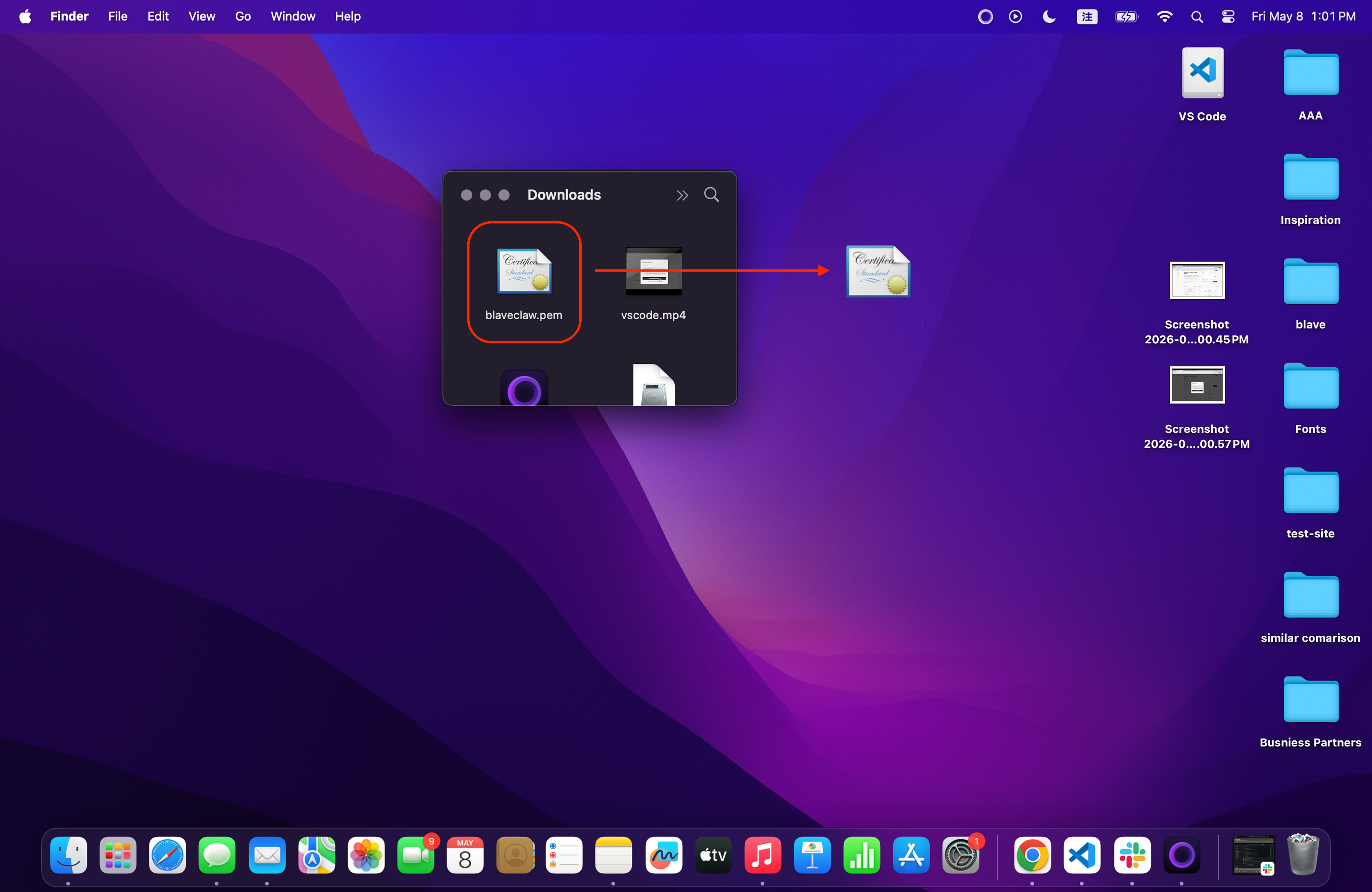
Download the SSH key. On the BlaveClaw dashboard, click "Develop with IDE →" and then click "Download SSH Key". Your browser will download blaveclaw.pem — move it to your Desktop before continuing.
Set key permissions. Open Terminal and run:
chmod 400 ~/Desktop/blaveclaw.pem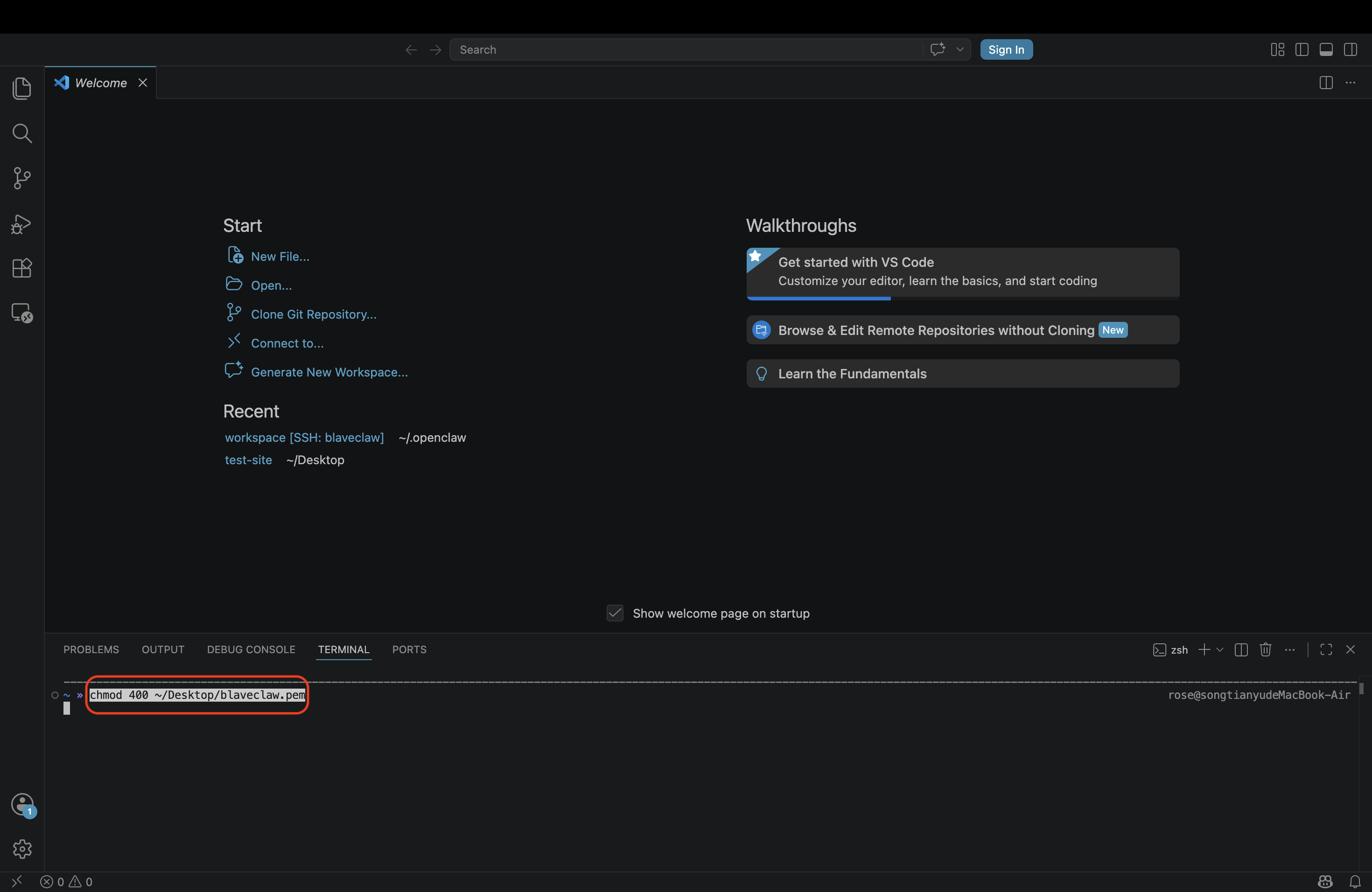
Windows: right-click the file → Properties → Security → Advanced → disable inheritance, then grant read-only access to your user only.
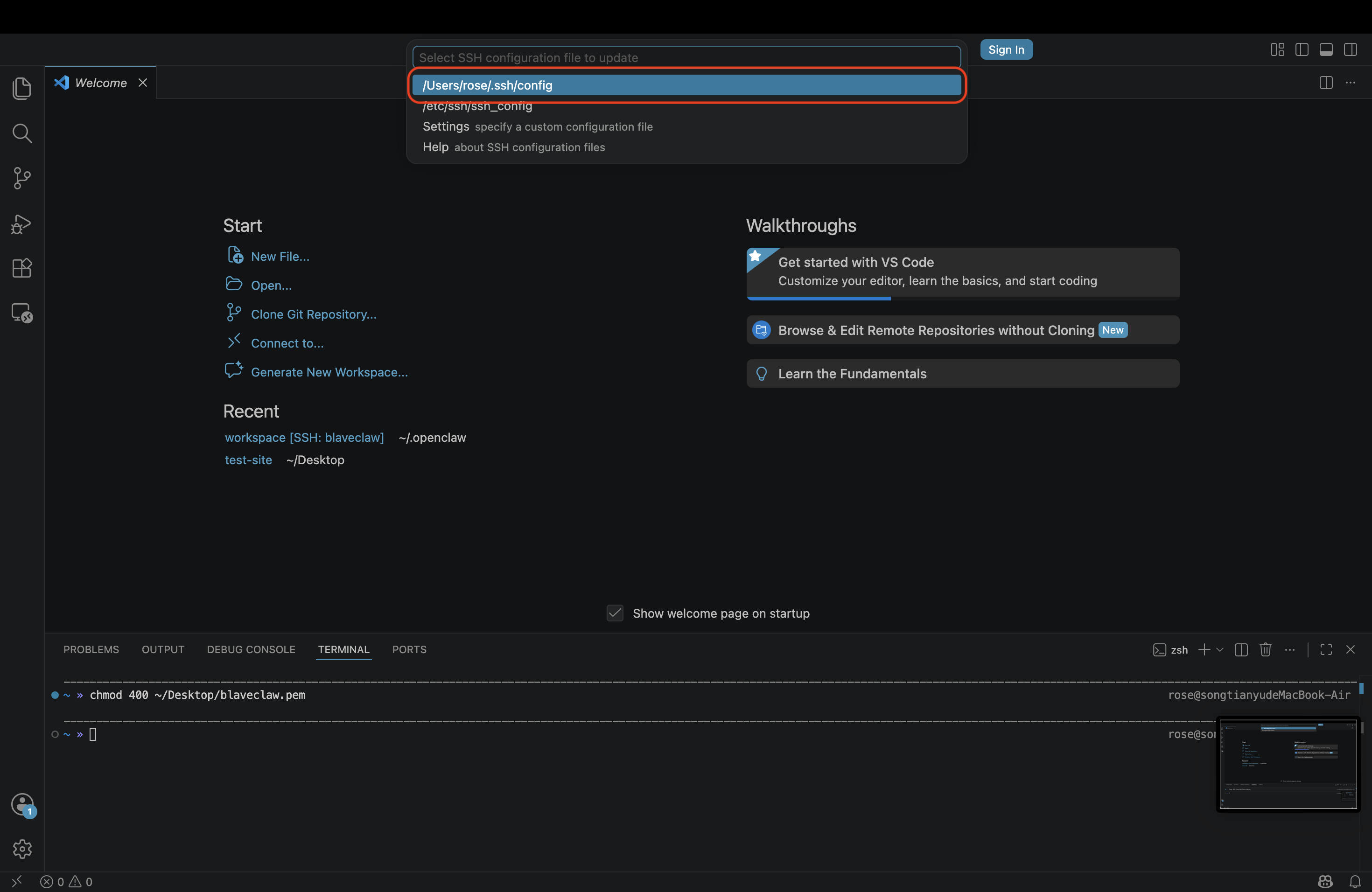
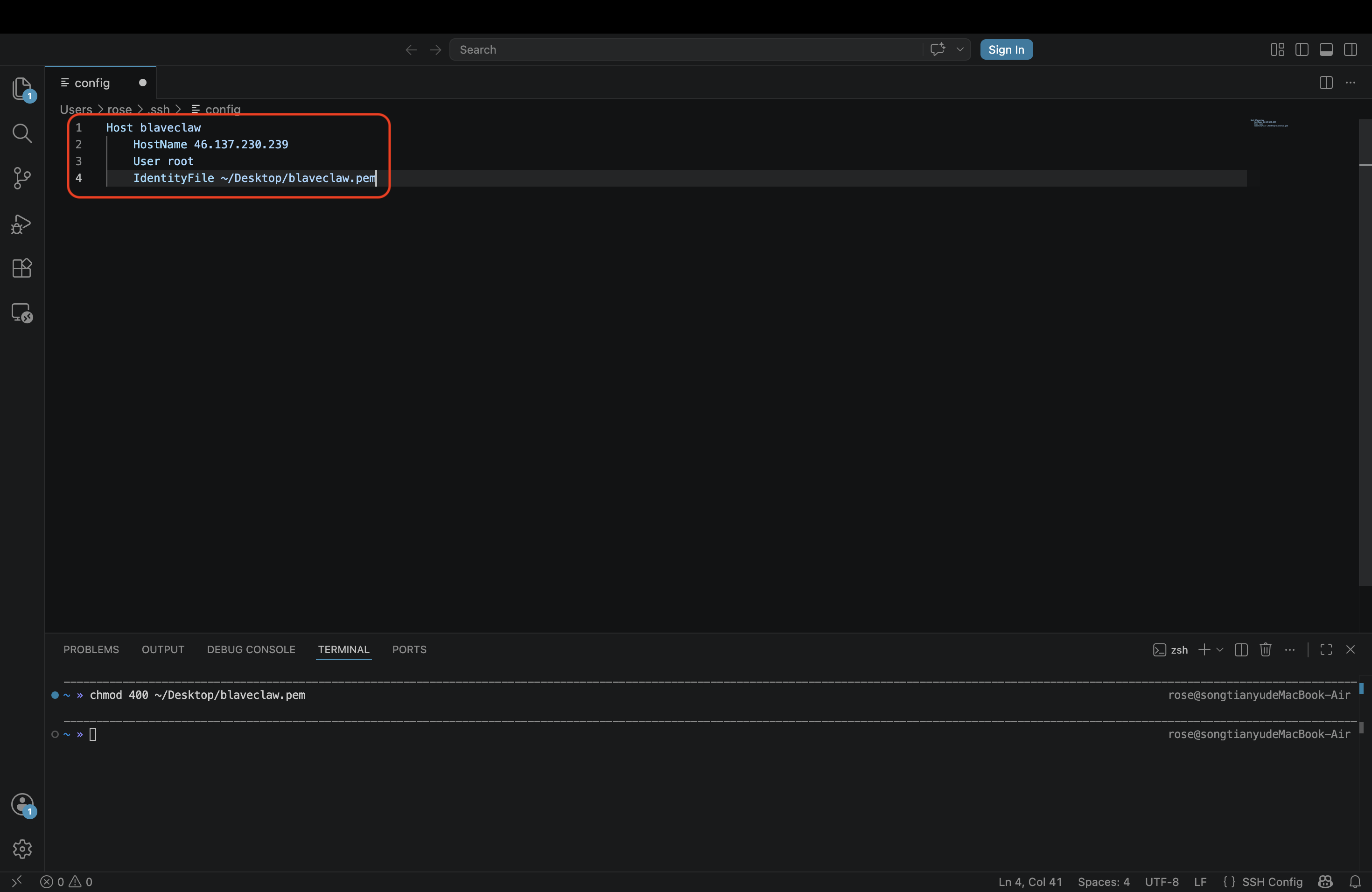
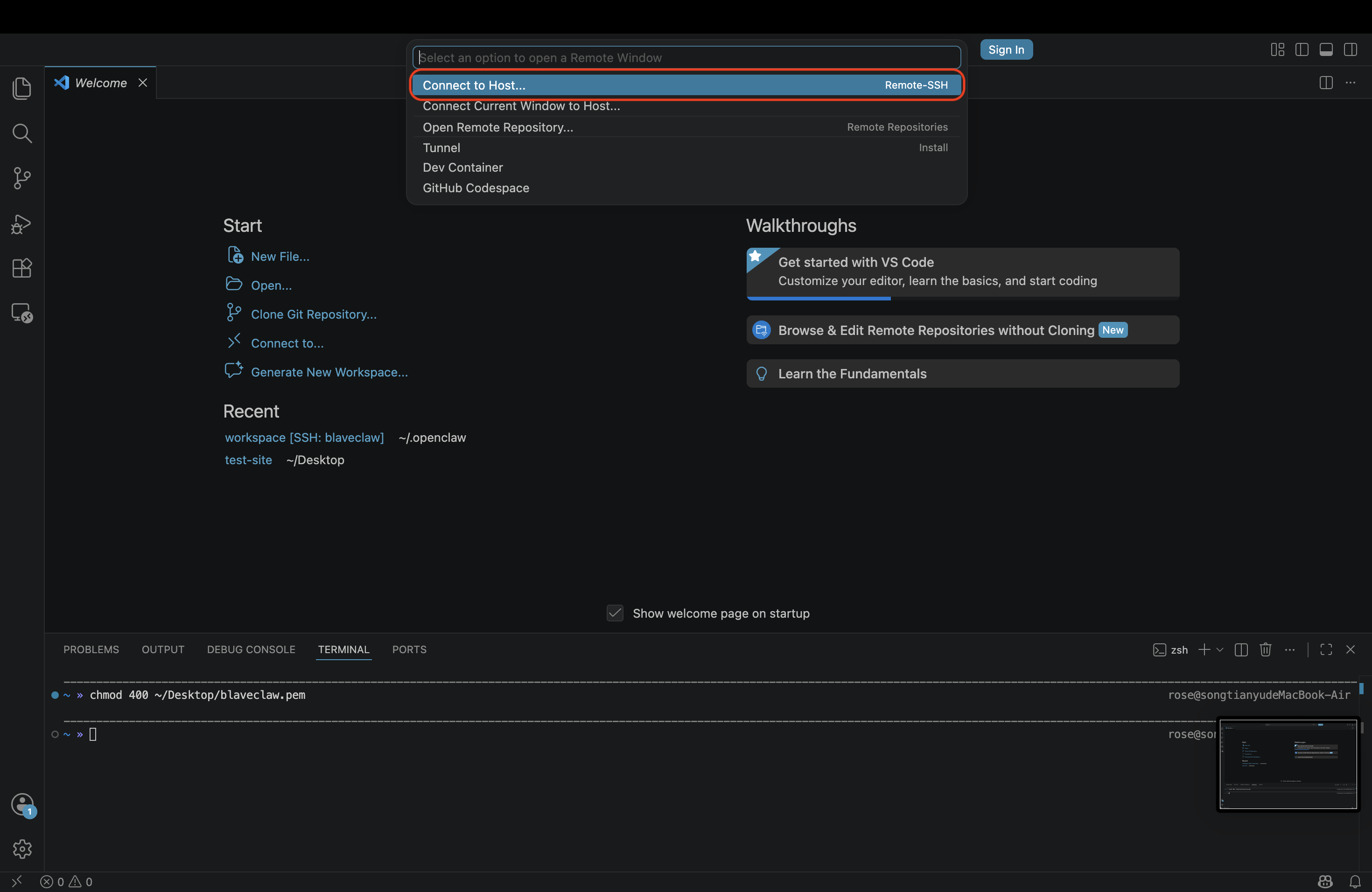
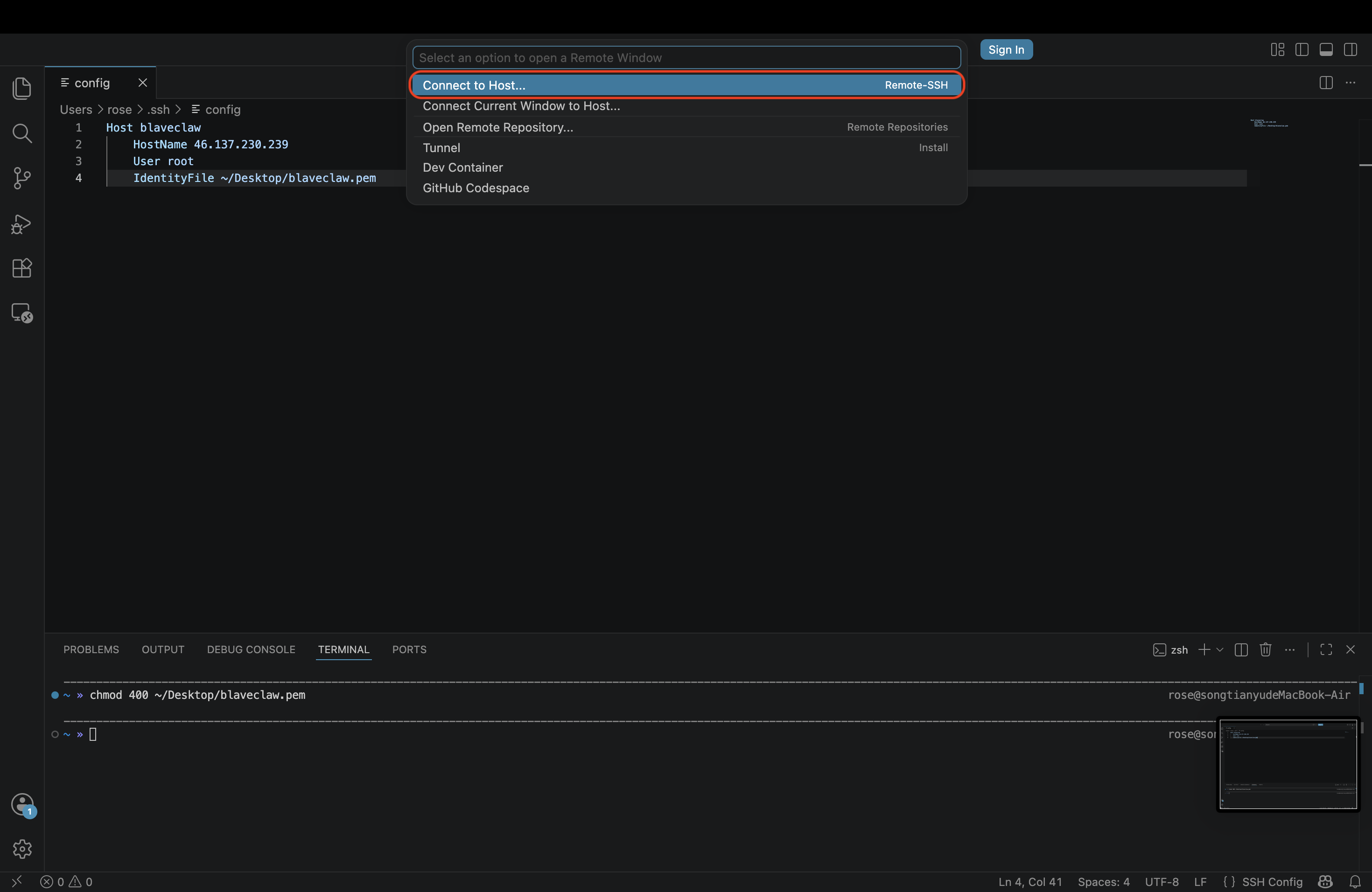
Set up SSH config. Click the bottom-left remote indicator in VS Code, select Connect to Host… → Configure SSH Hosts…, then choose ~/.ssh/config. Paste the config block copied from the "Develop with IDE →" modal and save.
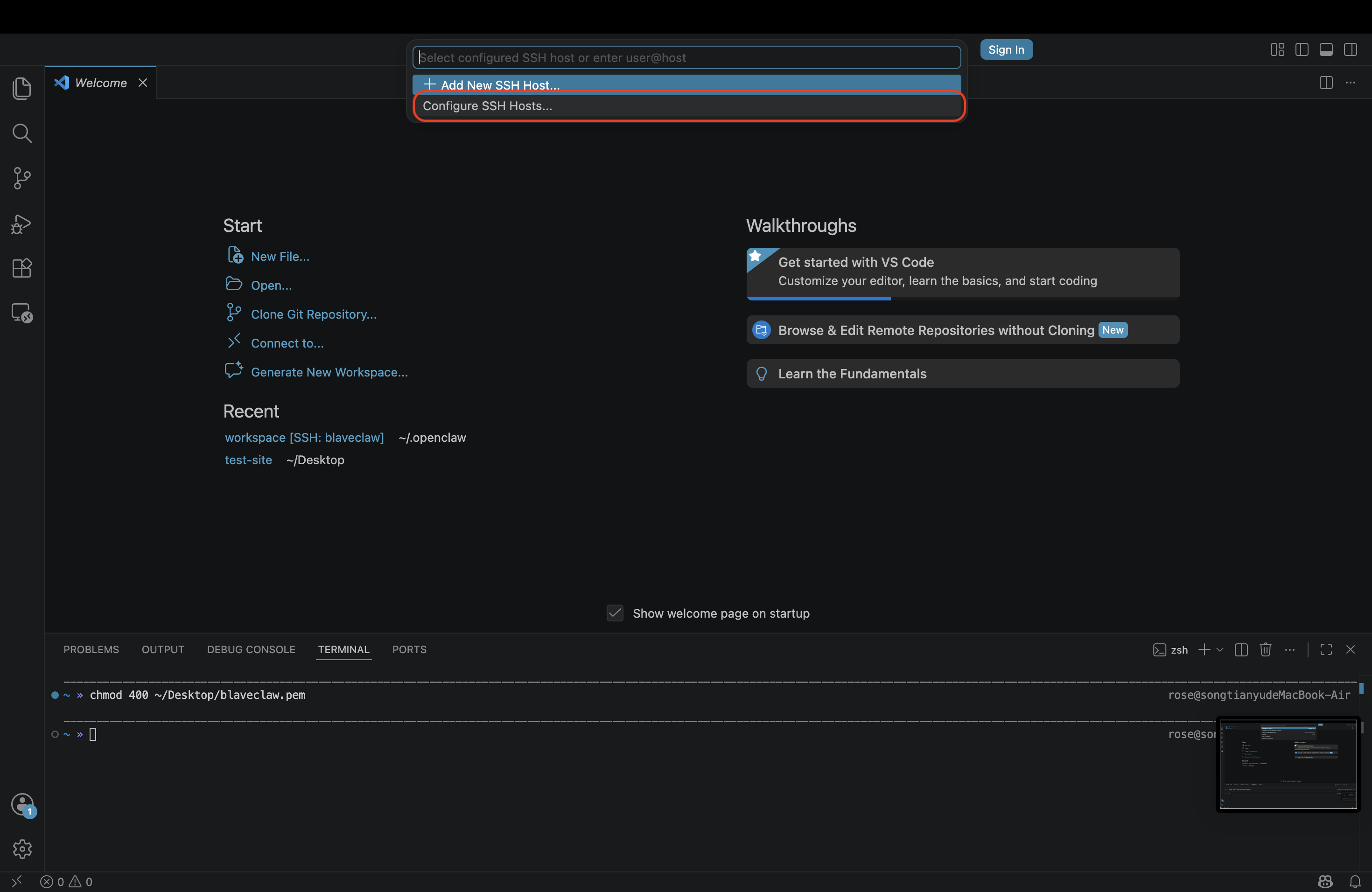
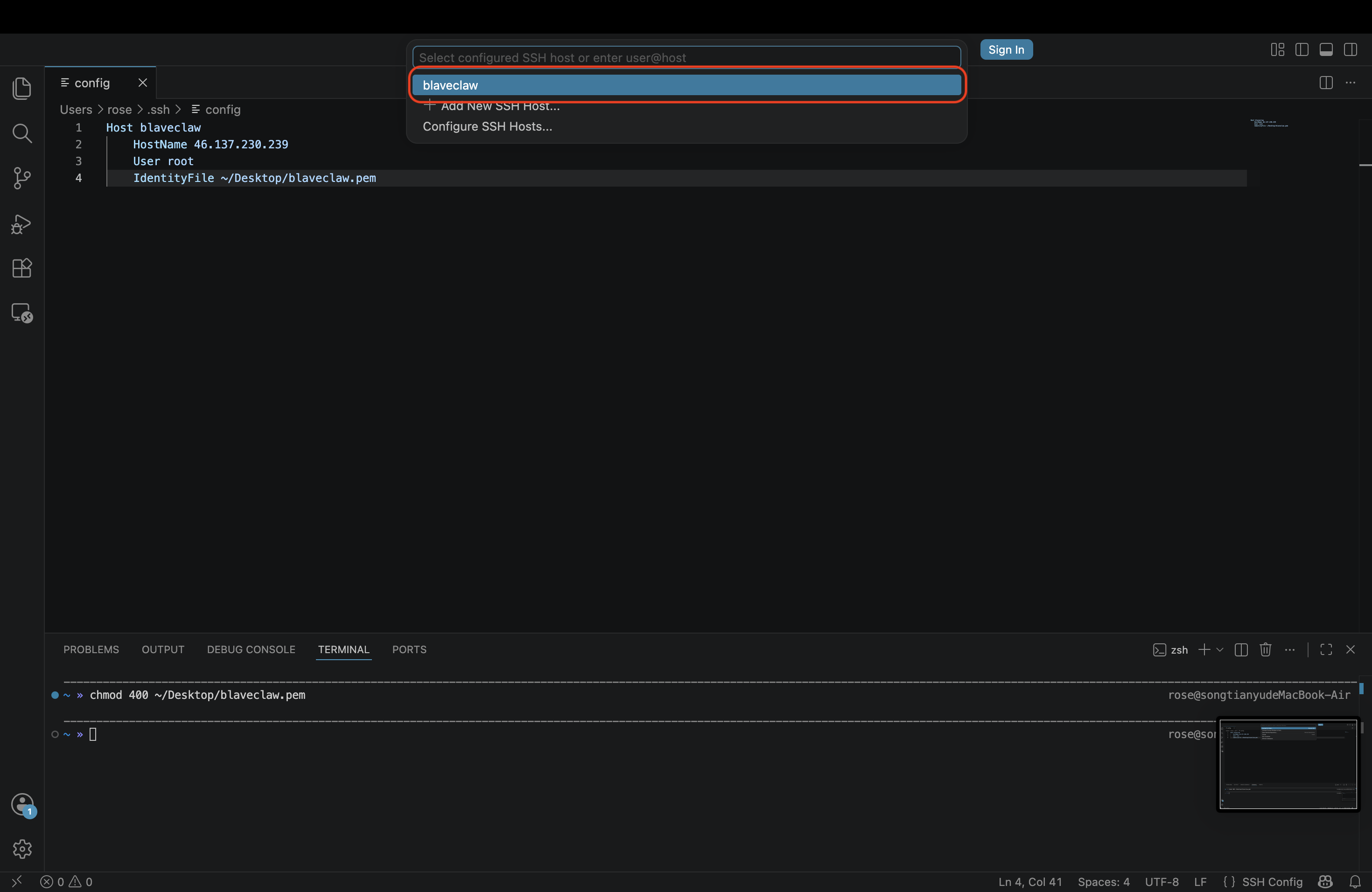
Connect in VS Code. Click the remote indicator in the bottom-left corner of VS Code (or open the Command Palette with Cmd+Shift+P / Ctrl+Shift+P), select Connect to Host…, and choose blaveclaw.
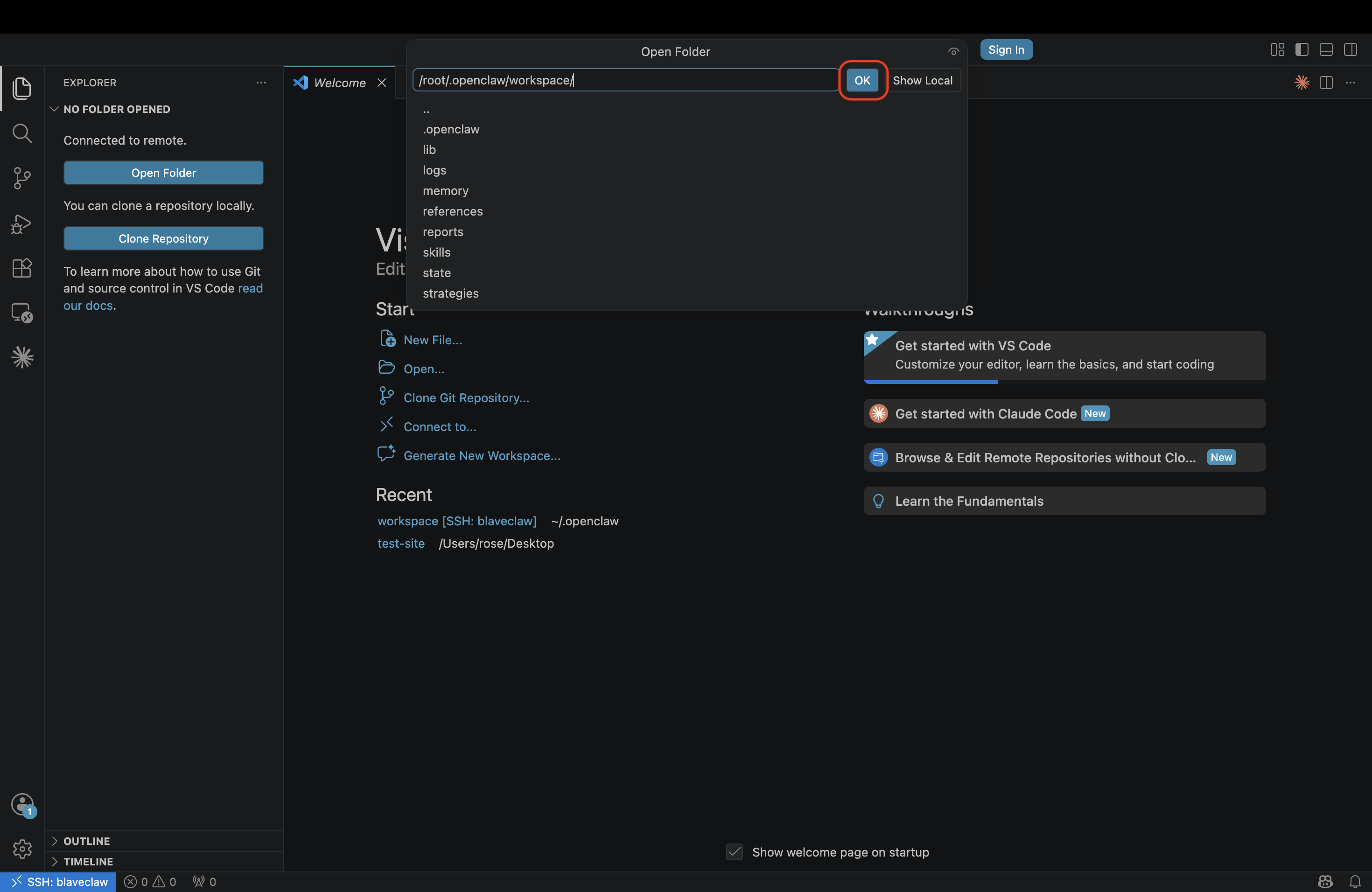
Once connected, open the folder /root/.openclaw/workspace to start editing your strategies.
~/.ssh/config before reconnecting.claude directly to edit your strategies with AI assistance — no init needed.