Download


App Store


Google Play
Connect to your Windows BlaveClaw machine's desktop — for anything that needs a Windows GUI, not just the terminal.
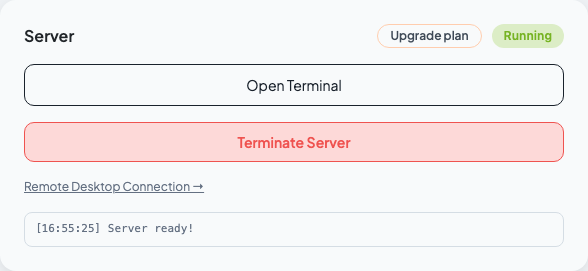
RAWinApp.exe) to issue a trading certificate. Remote Desktop lets you run tools like that directly on your machine.Open the connection info modal. On the BlaveClaw dashboard, once your Windows instance is running, click "Remote Desktop Connection →" next to the terminal link.
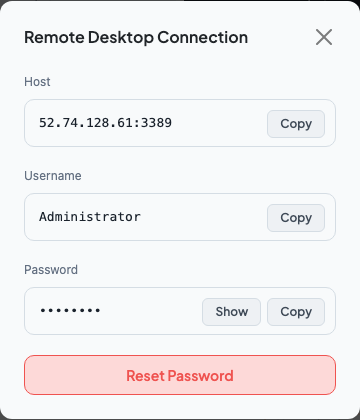
Reveal and copy your credentials. The modal shows Host (IP:3389), Username (always Administrator), and a masked Password. Click "Show" to reveal it, or use the copy button next to each field.
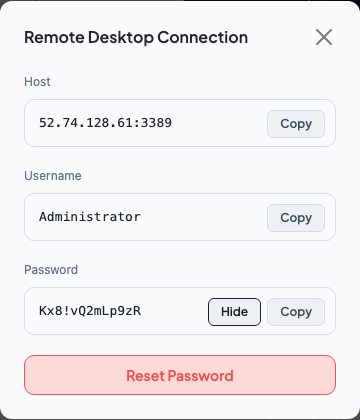
Keep this tab open while you connect — you'll need to paste the Host and Password into your RDP client.
Connect with your RDP client. Open the app for your OS and enter the Host, Username, and Password from the modal:
IP:3389) into PC name, then click Add.Administrator) and Password from the modal.IP:3389) under Computer, then click Connect.Administrator) and Password from the modal when prompted.Accept the certificate warning. Your first connection shows a one-time warning about an unverified certificate — this is expected (the machine uses a self-signed certificate). Click "Yes" / "Continue" to proceed; the Windows desktop appears.