Quick Start
Two ways to run it: the free, open-source desktop app with your own Claude Code or Codex, or a cloud machine that keeps going with your computer off.
Desktop App
Download the Mac or Windows app, install it and open it. Free and open source (Apache-2.0); no sign-up needed first.
- Mac: macOS 13 or later, one installer for Apple silicon and Intel. Open the .dmg and drag Blave into Applications.
- Windows: Windows 10 or 11 (x64). It installs under your own user account; no administrator rights needed. Windows on ARM isn't tested yet.
Windows Warns on the First Install
The installer isn't code-signed yet (we've applied for a certificate), so Windows can't identify the publisher and stops it once. The source and the build are public on GitHub; every release is built by a public GitHub Actions workflow.
- If your browser says the file isn't commonly downloaded, keep it. In Edge: “…” → Keep → Show more → Keep anyway.
- Open the installer. When you see “Windows protected your PC”, click “More info”.
- Check that the file name is Blave-Setup.exe, then click “Run anyway”. Blave installs and opens on its own.
- The first launch sets up its runtime and takes a few minutes; after that it opens right away.
Don't see “Run anyway”? A work PC's policy, or Smart App Control on Windows 11, can block apps that aren't signed yet; neither can be bypassed from the dialog. You can use a cloud machine for now.
Pick your AI: bring your own Claude Code or Codex — it runs on your own subscription, no Blave account needed — or sign in and use Blave AI, billed by usage. Codex ships inside the ChatGPT app: on Windows install “ChatGPT” from the Microsoft Store (don't search for Codex — the top result is a knock-off); on Mac install ChatGPT.app.
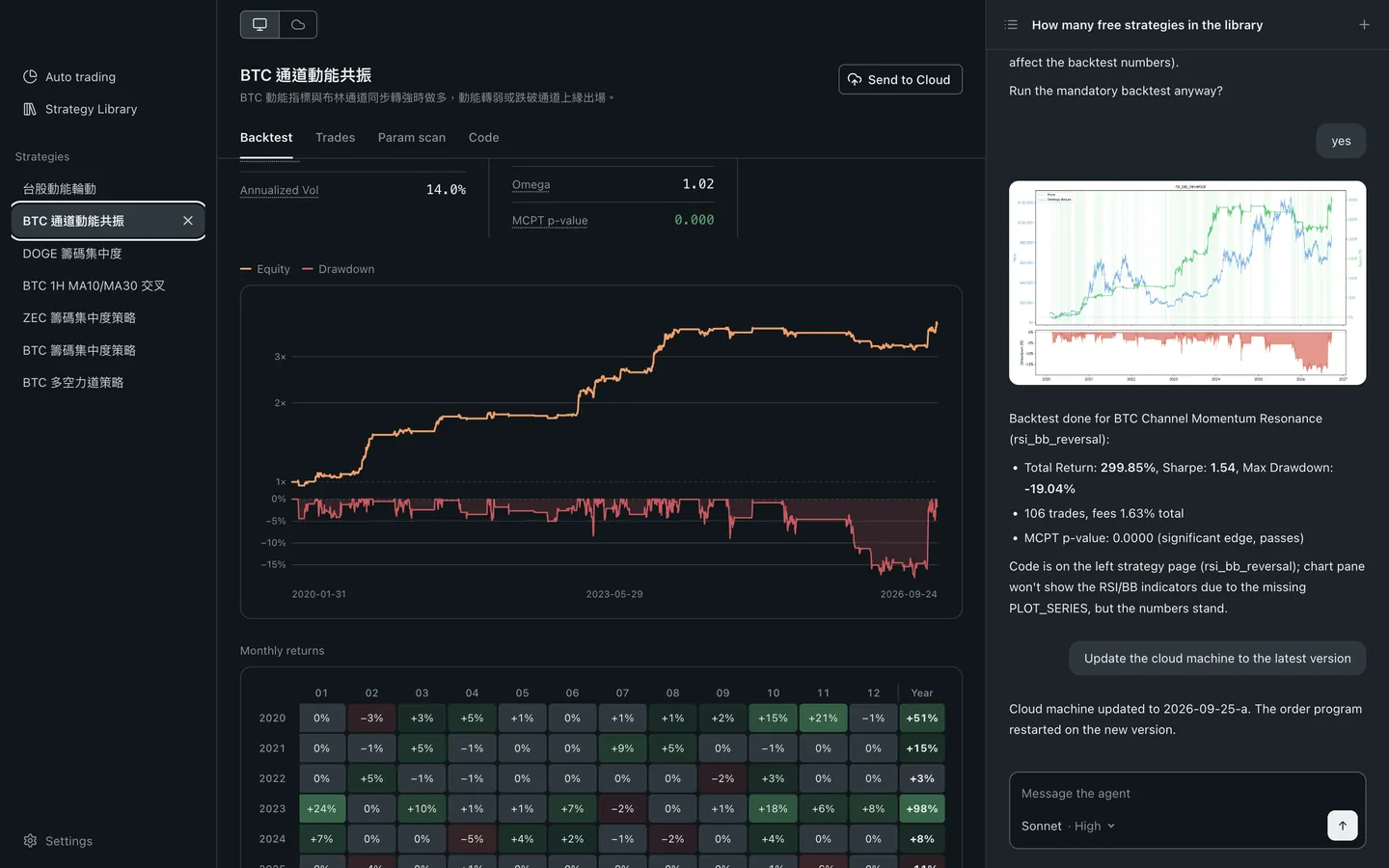
Describe your trading idea in one plain sentence. It writes the strategy, runs the backtest, and shows the results right in the workspace.
Happy with the backtest? Connect your exchange keys and the strategy trades live; the keys sit in the workspace .env on your computer.
Keep It Running With Your Computer Off: Launch a Cloud Machine
Log in and add a card on the launch page. A first card is charged only a 10 TWD verification (it goes into your balance) and comes with 14 days of waived server fee plus 100 TWD of AI credit; the launch button unlocks once the card is on file. To top up or turn auto top-up off later, go to Usage & Billing.

Click Launch Server. If you like, open Advanced settings first to pick the operating system (Linux by default, or Windows) and server tier.
Wait a few minutes while your server installs — the status badge goes from Pending to Installing to Running.
Click Enter Workspace and start chatting: ask for market data, have the agent build and backtest a strategy — everything runs in the web workspace.


Optional — prefer chatting in Telegram? Follow Connect Telegram to create your own bot and pair it.
Agent standing rules
Some things you only want to say once: “always include fees in a backtest”, “default to USDT-margined perps unless I say otherwise”. Those are standing rules — once written down, the agent reads them every turn, across the cloud machine's Telegram, web workspace and SSH, and they survive a new conversation. Two ways to write one:
- Say it in the chat. Tell the agent “from now on every strategy needs a stop loss” and it records that as a rule.
- Manage them in Settings. Workspace, More › Settings › Agent rules: read, edit and delete them there.
The limit is 10 rules, 150 characters each. When it is full it stops and tells you — nothing old gets dropped for you. Delete one yourself to make room; we don't decide which of your rules to sacrifice.
Rules are defaults, not hard limits: safety and halt rules (HALT, close-all, risk caps) rank higher and always win. When a rule clashes with the strategy logic — a portfolio strategy has no per-trade stop, for example — the agent says so and asks you. It won't silently comply, and it won't silently ignore you.