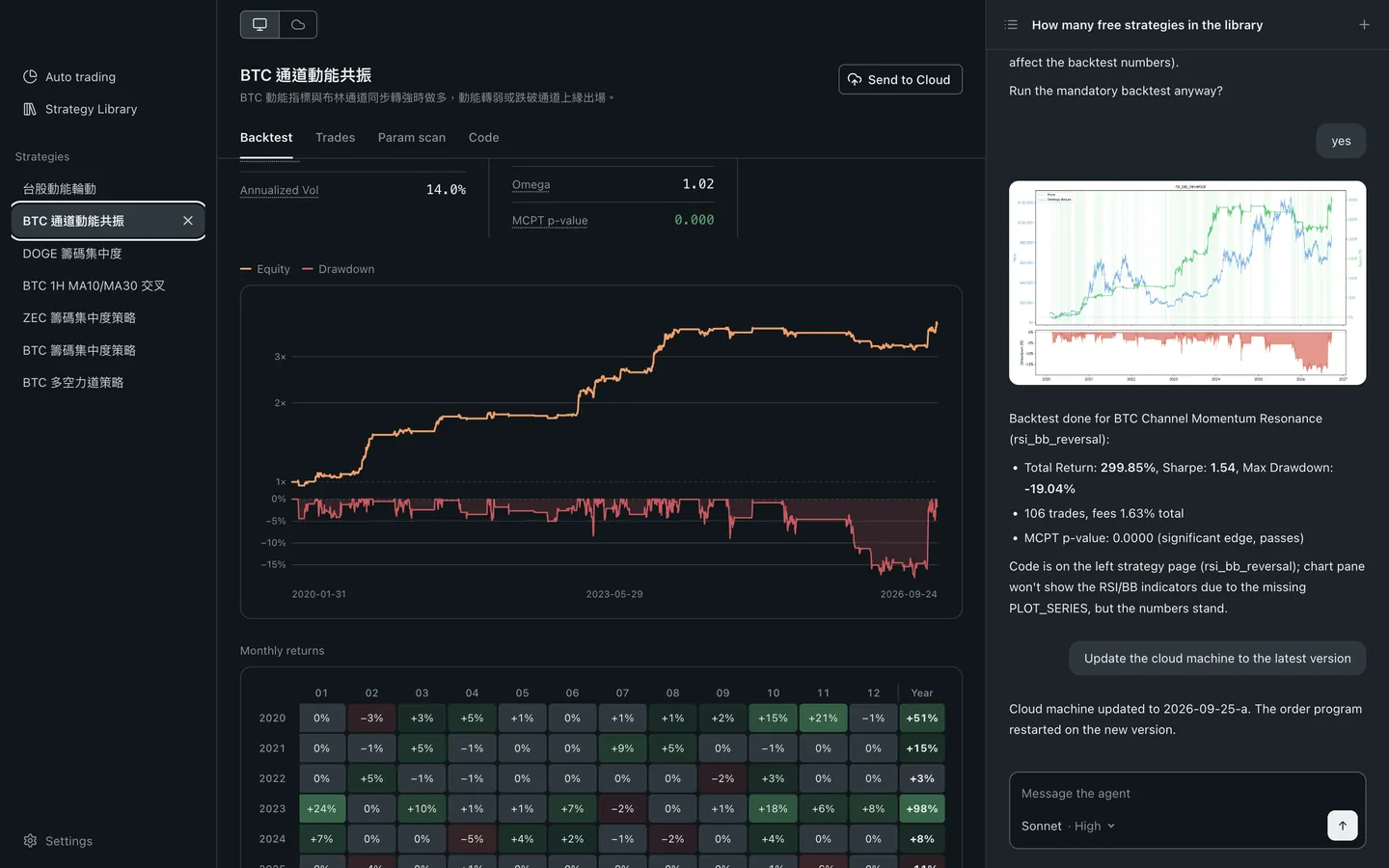
Send agent-exported Pine strategies straight into your own TradingView editor, then send the Strategy Tester numbers back in one click. Desktop Chrome or Edge.
Last updated 2026-09
The part that can lose work, first: "Send to TradingView" replaces everything in the Pine editor with the new code. It does not open a second script and it does not append. If you have unsaved work in the editor, save it or open a new script before you send.
What does the extension do?
One thing only: it carries code and numbers between your Blave workspace and your own TradingView tab, and it runs on tradingview.com and nowhere else. That is three actions —
Writes the Pine strategy your agent exported into your Pine editor.
Opens or switches to your TradingView tab and puts it in a tab group named "Blave", so you can tell at a glance which tab it is.
After you have run the backtest yourself, sends the Strategy Tester numbers back to the workspace as a message to your agent.
What will it not do?
It never presses a button for you. "Add to chart", running the backtest, placing orders — you do all of it. The extension only writes code and reads numbers.
It talks to no server and uploads nothing. The whole trip happens inside your own browser, from one tab to another, without passing through Blave.
It does not touch passwords or cookies. It cannot see the passwords saved in your browser and it does not read or write your login state.
It cannot reach any site other than tradingview.com. Chrome enforces that at the browser level — it is not a promise we are keeping on the honour system.
Without a Blave Agent workspace it does nothing. The strategies it sends are the ones your agent produces; with no agent, the extension is something that never wakes up.
Before you start
Desktop Chrome or Edge. Safari, Firefox and mobile browsers are not supported.
A TradingView account. Writing code into the editor works without signing in, but "Add to chart" and the backtest need an account.
How do I install it?
1
Open the Blave browser extension listing on the Chrome Web Store (listed as "Blave Browser Bridge") and click "Add to Chrome". Edge installs the same listing.
2
Pin it to the toolbar so you can find it (it works unpinned too). To update or remove it later, type chrome://extensions in the address bar — that address cannot be made into a link, because Chrome blocks pages from linking to chrome://, so type it yourself.
3
Go back to the Blave workspace and reload. On a Pine export card, "Install the extension" becomes "Send to TradingView" — that button is your confirmation that the install worked.
How do I send a strategy to TradingView?
In the workspace, pick a strategy, click "Export code" on the tab and choose "TradingView" from the menu.
The agent produces a .pine file and an export card appears in the workspace.
Click "Send to TradingView" on the card. The browser switches to your TradingView tab and the code goes into the Pine editor — this replaces what is currently in the editor, so make sure nothing in there is unsaved.
In TradingView, click "Add to chart" yourself and wait for the Strategy Tester to finish.
Switch back to the Blave workspace and click "Send backtest results back". The Strategy Tester numbers go to your agent as a message.
Why don't the two backtests agree?
Because they are not computing the same thing, and that is not a bug. Blave's backtest and TradingView's Strategy Tester use different data sources, different fill models and different cost assumptions — and the Strategy Tester's Properties panel can override every setting written in the script: initial capital, commission, slippage, order size. Change one and you have a different set of numbers. Treat the TradingView run as the same idea under another set of assumptions, not as a figure that should match to the decimal.
Stuck?
"Could not open the Pine editor" — that tab does not have a chart open yet. Switch to it, wait for the chart to appear, and send again. (Writing works signed out too, but signed out the chart often will not load at all.)
"No TradingView tab found" — the tab was closed. Click "Send to TradingView" again and the extension opens a new one.
"The Strategy Tester is not open, or no strategy has been added to the chart" — the code reached the editor but is not on the chart yet. Click "Add to chart" first and wait for the tester to show numbers before sending them back.
TradingView blocks "Add to chart" — the Free and Basic plans allow 2 indicators or strategies per chart. Remove the others from the chart and try again. That is a plan limit, not a problem with the script.
"The extension is out of date" — the workspace used an action this build does not know yet. Type chrome://extensions in the address bar to update it; Chrome usually updates extensions on its own, and if you do not want to wait, turn on "Developer mode" on that page and an "Update" button appears.
Privacy: the extension sends none of your code, backtest numbers or browsing history to Blave or to any third party; the data only moves between two tabs on your own computer. Full details in the extension privacy policy.
Let Your AI Do Quanton Your Own Computer
Blave Desktop is free, open source and needs no sign-up. Connect Claude Code or Codex: it writes the strategy, runs the backtest and trades it live.
Downloading. When you open the installer, Windows first shows “Windows protected your PC”:
Click “More info”.
Click “Run anyway”. Blave installs and opens on its own.
The first launch sets up its runtime and takes a few minutes.
Windows warns because the installer isn't code-signed yet (we've applied for a certificate), so it can't identify the publisher. The source is public on GitHub. See the full steps